
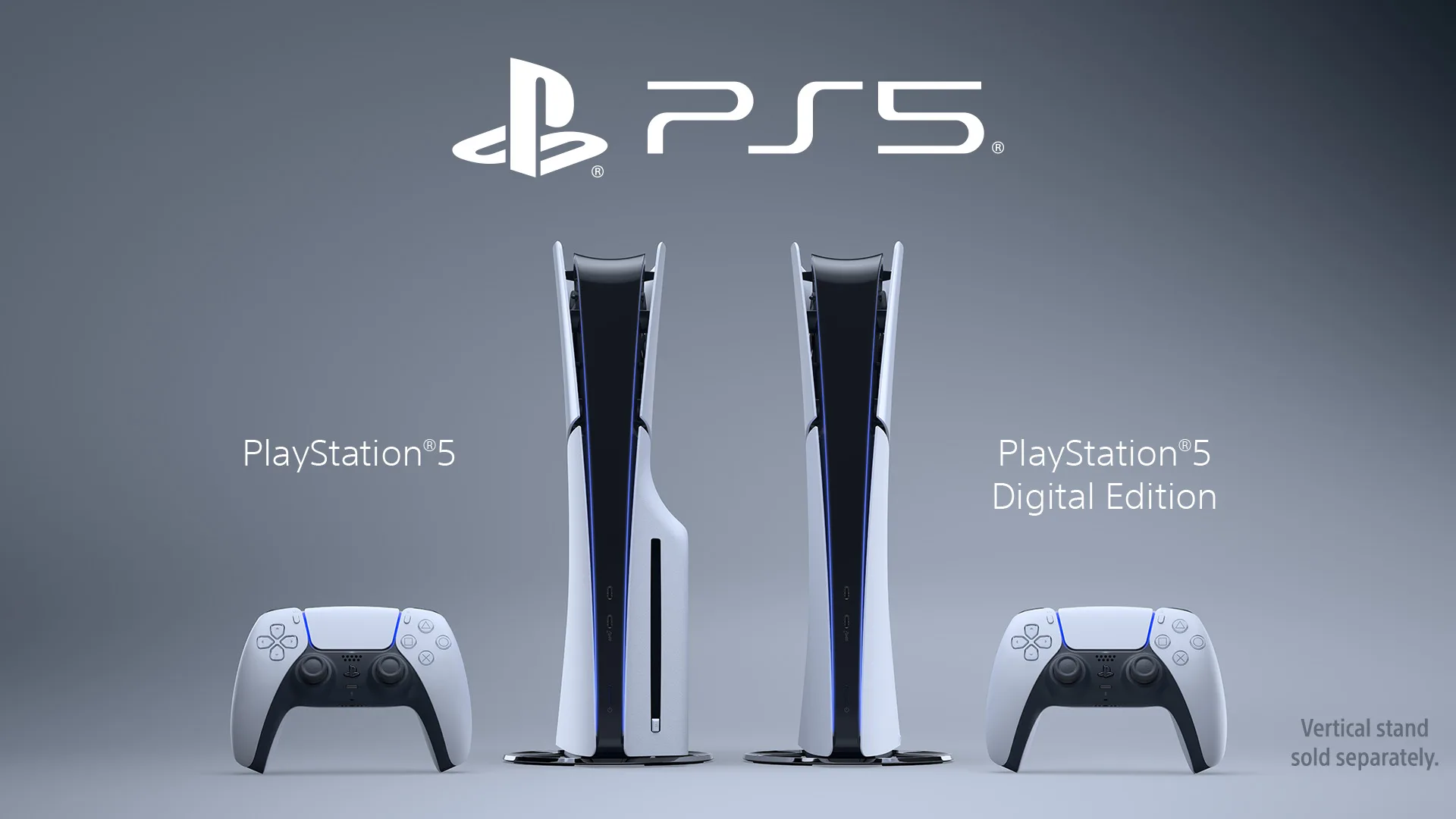
The short version
- You don't need HDMI 2.1 to play. Any HDMI TV works, and 4K at 60Hz runs fine on HDMI 2.0.
- You do need it for 4K at 120Hz, which both the PS5 and Xbox Series X support.
- HDMI 2.1 TVs usually add VRR (smoother frame rates) and ALLM (automatic game mode) too.
- Plug into the TV's HDMI 2.1 port, using the cable in the box or an Ultra High Speed cable.
What HDMI 2.1 unlocks
An HDMI 2.0 port tops out at 4K at 60Hz. That's enough for most games, which run at 30 or 60fps anyway. HDMI 2.1 has the extra bandwidth for 4K at 120Hz, which matters for the games that offer a 120fps mode.

Two extras usually come with it. VRR (variable refresh rate) lets the TV follow the game's frame rate, so drops look less juddery. ALLM switches the TV into its low-lag game mode on its own. Our refresh rate guide explains why 120Hz feels smoother.
Check your TV first
Many TVs have only one or two HDMI 2.1 ports, and they're not always labelled on the back. Look for "4K 120Hz" or "HDMI 2.1" next to a port, or check the manual. Some TVs also need an "enhanced" HDMI setting turned on for that port.
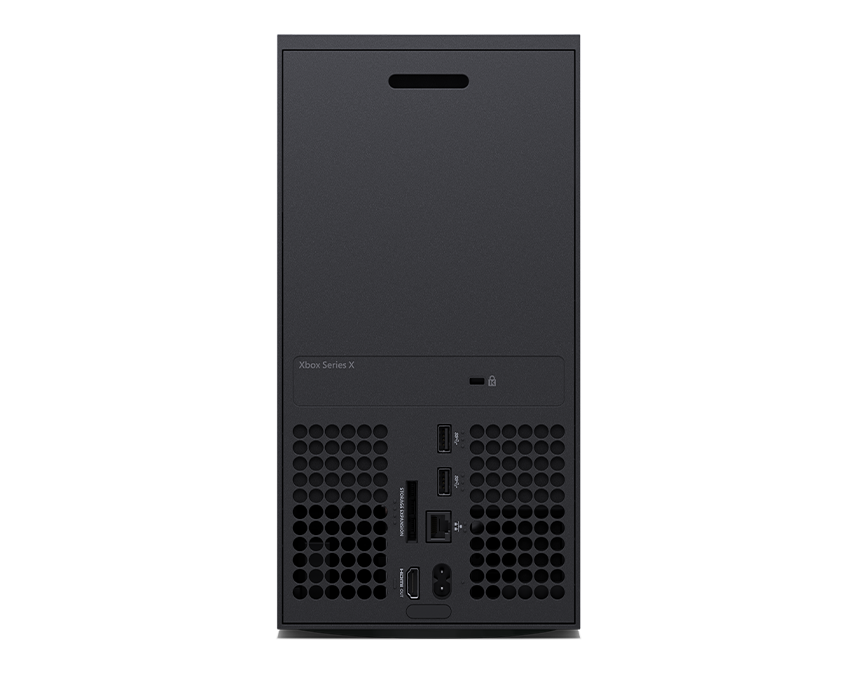
The cable matters
The PS5 and Xbox Series X ship with a cable that handles 4K at 120Hz. If you need a longer one, buy an Ultra High Speed HDMI cable. It's rated for 48Gbps, enough for 4K at 120Hz and 8K at 60Hz. Real ones carry a certification label you can scan with the HDMI Cable Certification app.

The settings to turn on
PS5: go to Settings, then Screen and Video, then Video Output. Set 120 Hz Output to Automatic and turn on VRR and ALLM. If 4K at 120Hz won't show up, check Video Transfer Rate: the -1 and -2 options limit it.
Xbox Series X|S: go to Settings, then TV & display options, and set Refresh rate to 120Hz. The 4K TV details screen tells you what your TV supports. Connect straight to the TV, because some sound receivers can't pass 120Hz through.
What to check next: whether your favourite games actually have a 120fps mode. Without one, an HDMI 2.1 port changes very little.
Images: Sony Interactive Entertainment, Microsoft, HDMI Licensing Administrator. Chart: Zerocade.


![Kingdom Hearts Collection [I~III] key art for Nintendo Switch 2](/_next/image?url=https%3A%2F%2Fwww.nintendo.com%2Feu%2Fmedia%2Fimages%2Fassets%2Fnintendo_switch_2_games%2Fkingdomheartscollectioni_iii%2F16x9_KingdomHeartsCollectionI_III_image1600w.jpg&w=3840&q=75)